




Reward double opt-in with a discount
Compliant two-step opt-ins that deliver an instant discount and lift confirmation rates.
Keep your contacts informed and engaged by highlighting new features directly inside your app.
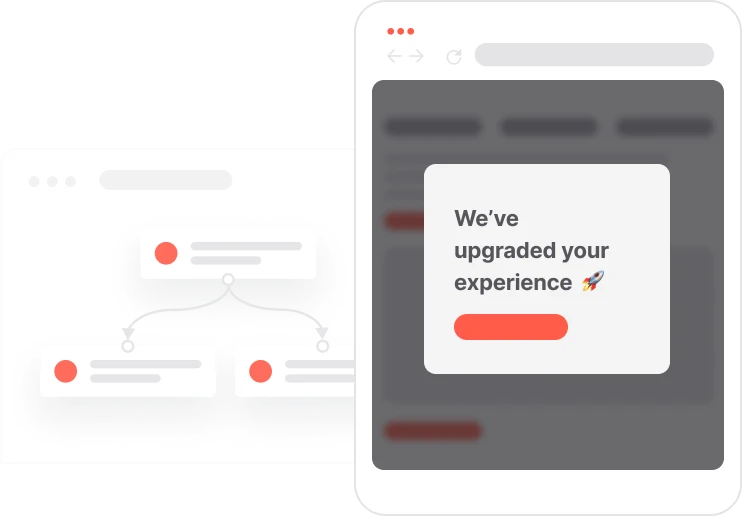
Most app users never discover new features on their own. They open the app, do what they always do, and miss everything that shipped since their last update. This use case catches them at the right moment: five seconds after they open the app, a short in-app message surfaces the new feature in context, with a direct link to explore it. No email to open, no push notification to ignore. Just a timely nudge inside the experience they are already in. The message appears once per session after app launch, respects the user's current task by waiting before showing, and can be targeted to users who have not yet discovered the feature. Used consistently after each release, it turns passive users into informed ones and reduces the gap between shipping and adoption.
A user opens the mobile app. The Mobile Activity event fires. The system waits five seconds to let the user settle, then an in-app notification slides into view. The headline says the experience has been upgraded. A short body text describes what is new. A button says See what's new and taps directly into the feature screen. The user reads the message, taps the button, and discovers the feature in context, without ever leaving the app. If they dismiss the message, they can still access the feature later. The display frequency control in the Cheat Sheet ensures the same announcement does not surface again and again for users who have already seen or interacted with it.
Contact opens the mobile app: When a contact opens the app, the Mobile Activity event fires. The system detects the session start and prepares to display the feature announcement message.
Wait 5 seconds: The system waits 5 seconds before showing the message. This delay gives the contact time to see the screen they were navigating to and prevents the notification from feeling intrusive at the exact moment they open the app.
In-app notification appears: An in-app notification appears with a compelling headline and a brief description of the new feature. The message is designed to inform the contact of what has changed and why it is worth exploring, in a few short lines.
Contact is invited to explore: A See what's new call-to-action button in the message deeplinks directly to the new feature screen. The contact can tap to explore the feature in context, or dismiss the message and return to what they were doing.
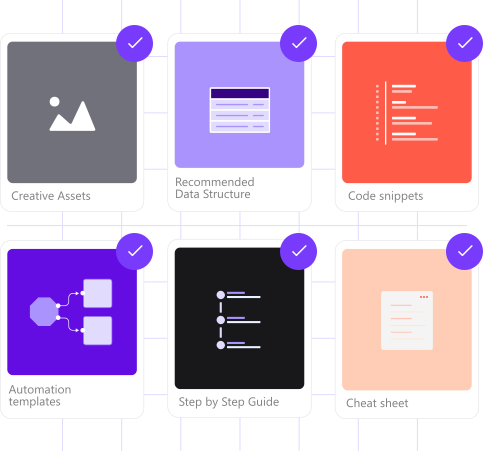
Implementing use case automation involves several key steps and tools. Here's comprehensive ressources to get you started:
Marketing on a new level with a beautiful visual, drag & drop creator.
Show pop-ups inside your mobile app to guide or inform your users.
An event tracks a specific action performed by a contact. The Mobile screen view event fires each time the contact opens a specific screen in the app.
Trusted by fast-growing teamsStart from a proven use case designed to help you engage faster, with relevance and impact.
More ways to engage your audienceCompliant two-step opt-ins that deliver an instant discount and lift confirmation rates.
In-app messages that surface new features the moment mobile users open the app.
Automated deal and task creation that puts sales on every expired subscription within days.